Pinterest Introduces Pins for Articles - And how you can Enable it

Now article pins contain additional information. Article rich pins don't come by default. Here is how you can get it.

Jeenfer Wilson Jeenfer Wilson Author
Social Media 3 min read 10,528 views
Share
Pinterest Introduces Pins for Articles - And how you can Enable it

Tracking your website’s progress in terms of your targeted keywords gets more and more tedious with the introduction of secure search for all searches, by Google. Leaving aside this hot news for now, let’s look into another aspect of marketing – social media.  Pinterest, a major player in social media, has announced that you can now pin articles from websites - definitely a good news.

What’s the difference?

I can hear you saying, “Hey, I used to pin articles. What’s new in this?”. This feature of Pinterest introduces a new type of Pin – “Article Pin”. So, how’s it different from the conventional pins?

While pinning, you can add the following details to your pin.

  1. Headline of the article

  2. Name of the author

  3. Description of the article

  4. Source URL

Adding to this, the photo appears larger than conventional pins, thereby getting more chances of being noticed. Here is a look of how these pins will look like. (Courtesy Techcrunch)
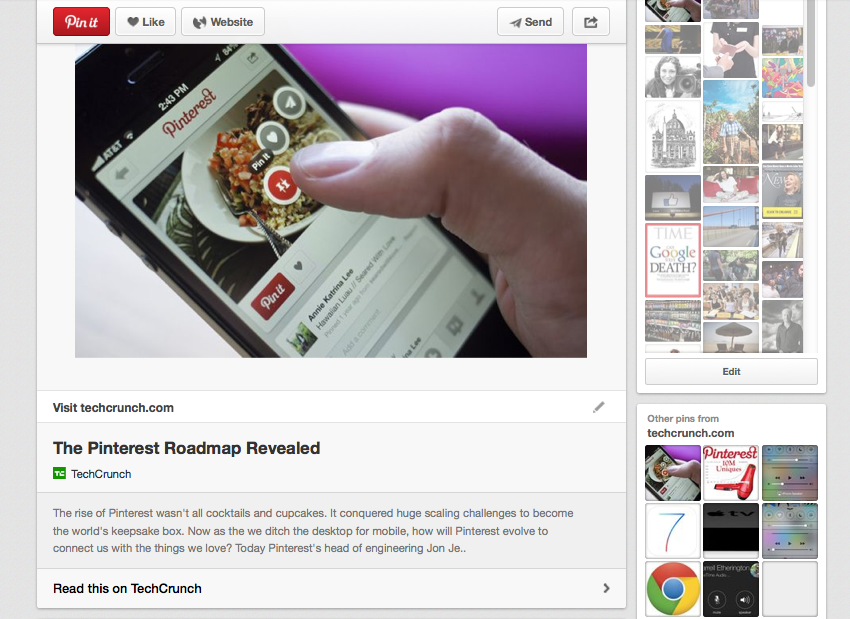
pinterest article pins


Given the fact that more than 5 million pins per day are article pins, this move by Pinterest is highly welcome. 

pinterest article pins

Pinterest says

“when you come across articles you may not have time to read, or just want to keep for later,  you can save them to your own reading list board. For example, you may be reading a lot about healthy living, so you could save the most interesting articles to a healthy reading board.”

So they are targeted to evolve as a social bookmarking media too. 

Take away

  • Don’t forget Pinterest – It’s evolving in a fast pace
  • Create articles – Even if your articles find it difficult to be seen on searches, you may be highly visible through Pinterest
  • Catchy image – Always have a catchy image in your article
  • Pin Button – Add a “Pin it” button to your articles. Help people share your article
  • Have a strong presence in Social Media - Better late, than never. Create your Social media profiles now

Pinterest, as a social media, can never be forgotten or under-estimated. Even though the links are no-follow, it's sure to bring you a lot of quality targeted traffic. 

How to enable article pins

By default if someone pins an article from your website or blog, these pins will show up only as normal pins. So how to enable these rich pins for articles? Here is the way.
 
  1. Read the Documentation by Pinterest on rich pins for articles
  2. Make the necessary modifications for your web page (schema markup)
  3. Validate your rich pins using Pinterest rich pins validator and apply
  4. You'll get a confirmation mail after the feature gets activated
There are plugins as well for validating this if you're using a wordpress site. Get article pins and boost your pinterest marketing. 
Topics pinterest article pins pin your articles pintere
Jeenfer Wilson

Written by

Jeenfer Wilson

Hi, I'm Jeenfer. I landed in this world of Digital Marketing and SEO not by love but after having entered it, I started loving it. I'm still in the learning curve and I love to share what I've learnt. Circle me on G+.