If you’re a business owner running Meta Ads, a marketer managing campaigns, or a digital marketing agency handling Meta campaigns for clients, this new Meta to GA4 feature is worth knowing. GA4 can now bring important Meta campaign data such as cost, clicks, and impressions into Google Analytics, making it easier to look at advertising results alongside website performance.
I recently looked into how this new Meta Ads Campaign Data Import connection works and found that there are a few things worth knowing before setting it up. In this article, I’ll show how to connect Meta to GA4, what needs to be checked before starting, how long the data can take to appear, and how to use the data after connecting.
Meta and GA4: What’s New
Previously, marketers had to use Meta Ads Manager and Google Analytics separately to understand the full performance of a Meta campaign. Meta Ads Manager showed data such as campaign spend, impressions and clicks. GA4 showed what visitors did once they arrived on the website – sessions, engagement, events, conversions and revenue. Oftentimes, marketers would need to do this manually to get the full picture from the data from both platforms.
For example, Meta Ads Manager might say a campaign spent $500 and received 2,000 clicks. Then in GA4, see that the traffic from that campaign drove 1700 sessions and 85 conversions. Previously, these numbers had to be checked separately.
The new Meta Campaign Data Import connection can bring in key Meta campaign data like cost, clicks, and impressions into GA4. This allows to view advertising data alongside website performance and understand what happened after people clicked the ads.
Marketers will be able to view which campaigns are generating traffic and conversions, compare campaign performance against other marketing channels and measure non-Google cost per click and non-Google ROAS.
For example, look at a Meta campaign that spent $500, received 2,000 clicks, generated 1,700 sessions, and resulted in 85 conversions, giving me a clearer view of how the campaign spend contributed to website results.
Why the Meta to GA4 Connection Matters
The biggest advantage I see is that I no longer have to look at advertising data and website data as completely separate reports.
For example, imagine I am running three Meta campaigns:
Campaign | Meta Spend | Clicks | GA4 Conversions |
Summer Sale | $500 | 2,100 | 86 |
Product Awareness | $700 | 3,400 | 42 |
Lead Generation | $450 | 1,600 | 115 |
If I look only at clicks, the Product Awareness campaign appears to be performing well because it received the most clicks.
But when I compare the advertising data with GA4 results, the Lead Generation campaign may be producing more valuable actions.
But when I compare the Meta campaign data with GA4 results, I can see that the Lead Generation campaign generated more conversions, even with fewer clicks and lower spend.
This is where I find the Meta to GA4 connection useful. I can see what happened after they reached the website, rather than just how many people clicked the ads. I can tell if they did anything with the site, filled out a form, bought something or, did some other significant thing. This gives me a better understanding of which campaigns are actually contributing to business results.
Key Checks Before Connecting Meta to GA4
Prior to connecting, I do a couple of things first. This ensures that I can import and match the Meta campaign information properly in GA4:
- A Google Analytics (GA4) property - This will be the destination for Meta campaign data.
- Editor-level access to the GA4 property - Need this permission to set up the Meta connection in GA4
- Meta Business and advertising account - This includes the Meta campaigns to monitor
- Meta Ads account access - Ensure access to the Meta ad account
- Campaign naming - Use clear and consistent names for campaigns for easy campaign reporting
- UTM structure - Use the same UTM parameters for all Meta campaigns to allow GA4 to correlate Meta campaigns with the website traffic received
- Existing Meta imports - Check for any existing Meta imports to avoid duplicate data
How to Connect Meta to GA4
Step 1: Open the Google Analytics property
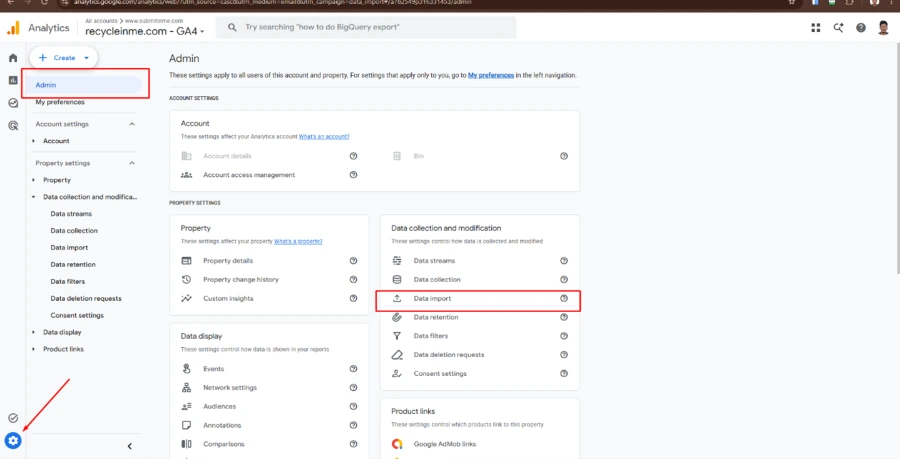
Step 2: Go to Admin → Data Import
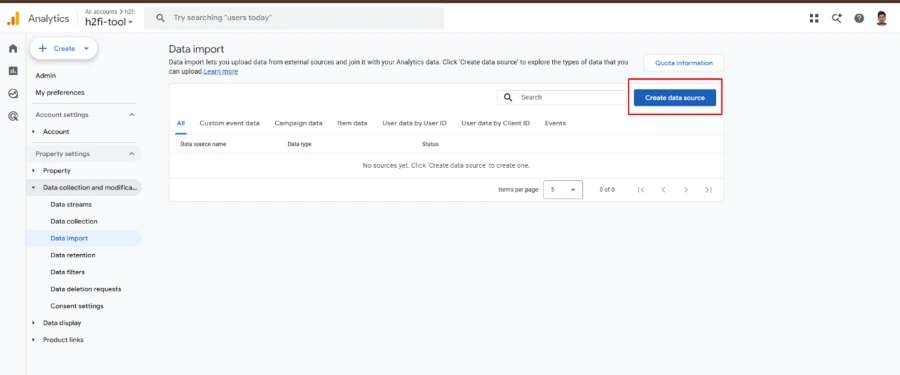
Step 3: Click Create data source.
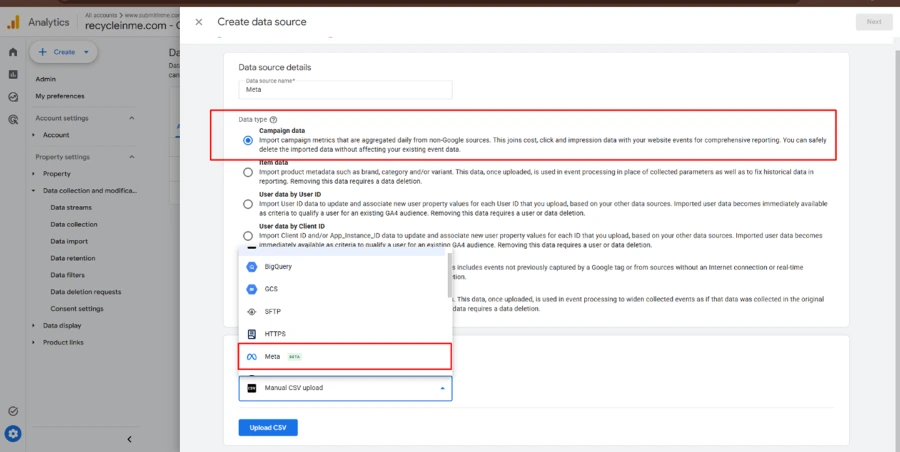
Step 4: Select Campaign data.
Step 5: Choose Meta and click Next
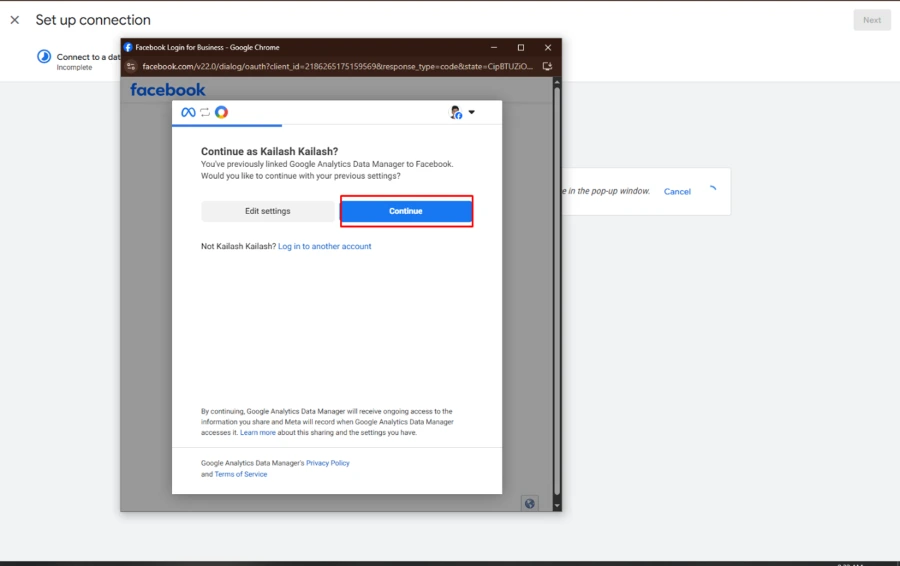
Step 6: Click Continue and log in to Meta account
Step 7: Select the Meta Business Center and Ad Account want to connect
Step 8: Set up UTM source and medium to match the values used in Meta ad URLs.
Step 9: Review the settings and click Finish.
Step 10: GA4 can then import Meta campaign data such as cost, clicks, and impressions. Then see the data along with website visits, conversions, and revenue to understand how Meta campaigns are performing.
Meta Data Processing Time in GA4
The connection does not mean that all Meta campaign data will appear in GA4 immediately.
Google says imports can take up to 30 minutes to complete, and the data can take up to 24 hours to become available in reports.
The direct Meta connection also attempts to pull up to 24 months of historical Meta Ads data into the Analytics property.
So, when I check the reports after setting up the connection, I allow enough time for GA4 to process and display the data.
Finding the Imported Campaign Data
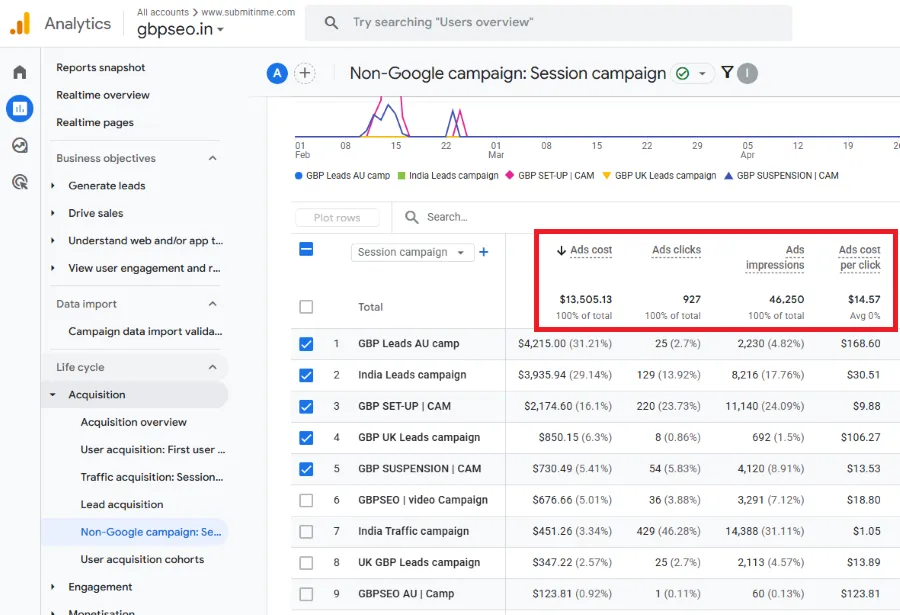
After connecting Meta Ads to GA4, I can analyse the imported campaign data from Reports → Acquisition → Non-Google campaign. I can also use the Advertising workspace to review the campaign performance.
I find this really helpful, as I can see Meta advertising data along with GA4 website activity and conversion data so I can see more easily how my paid campaigns are doing.
Benefits of Connecting Meta Ads to GA4
1. See Advertising and Website Performance Together
I can integrate Meta Ads with GA4, and gain access to key data relating to the campaigns, such as cost, clicks, and impressions, as well as website metrics, such as visits, engagement, conversions, and revenue. Numbers in one place allow to get a better grasp of a campaign's performance.
2. Understand What Happens After the Ad Click
Meta gives information on how people interact with the ads and GA4 gives information about what happens once the person is on the website. So, the process of someone clicking on an ad on Meta and then landing on the website, interacting with it, filling out a form, and converting. This assists me in understanding what occurs after the click on the ad; not only the number of clicks that the campaign has had.
3. Compare Campaign Cost with Results
A great benefit of linking Meta Ads to GA4 is the ability to analyse the spend and results of campaigns. The imported Meta data can be used in GA4 to calculate non-Google cost per click and non-Google ROAS.
4. Compare Different Marketing Channels
When I run campaigns on different advertising platforms, I like to be able to compare the results all in one place. For example, Meta Ads can generate 2000 clicks and 80 conversions and Google Ads can generate 1500 clicks and 100 conversions. Meta received more clicks, but Google Ads generated more conversion.
5. Cut down on manual reporting
Previously, campaign data had to be checked separately in Meta Ads Manager and GA4 and then manually compared it. The Meta connection allows me to bring campaign data into GA4 and reduces some of this manual work and makes reporting easier.
Final Thoughts
The new Meta to GA4 connection makes it easier to see Meta campaign data together with website results. Instead of looking only at clicks and ad spend, I can also see what happens after visitors reach the website and whether those campaigns lead to conversions.
For me, the most important part is having consistent UTM tracking and making sure the source and medium match between Meta and GA4. Once everything is set up correctly, GA4 gives me a clearer view of how Meta advertising contributes to website performance.
Stay tuned for more interesting and useful marketing topics, tips, and updates