This morning when I opened my email I saw a notification from Google Analytics. The subject line read "Meet Task Assistant – Easier Google Analytics setup."
My first thought was, Is Google Analytics launching an update? Because I often work with GA4 and campaign performance data I wanted to find out what Google had added.
So, I opened the email to discover what was new.
The first thing that grabbed my attention was the headline "Finish your setup and drive results with Task Assistant."
As I kept reading, I realized that this was not another feature announcement. Google Analytics was reminding users to finish setup tasks that could help them gain more value from their Analytics data.
Google Analytics Task Assistant
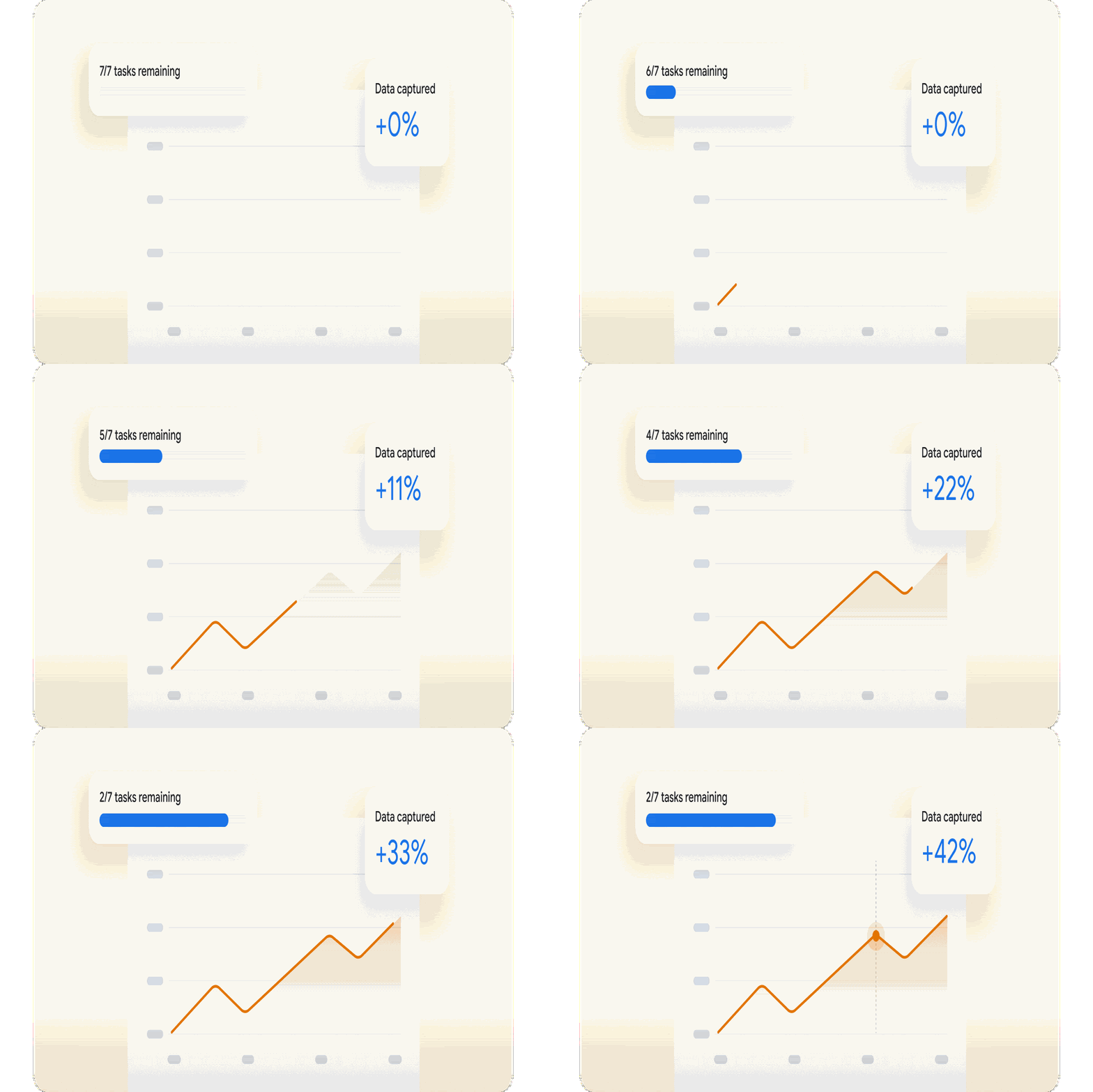
Task Assistant is designed to guide Google Analytics users through setup activities. Of leaving users to figure out every configuration alone Task Assistant recommends relevant tasks based on Google Analytics setup.
The main idea is simple, help users finish their setup improve measurement and use collected data
Three Tasks Google Analytics Recommended
1. Set Up User-Provided Data in GA4
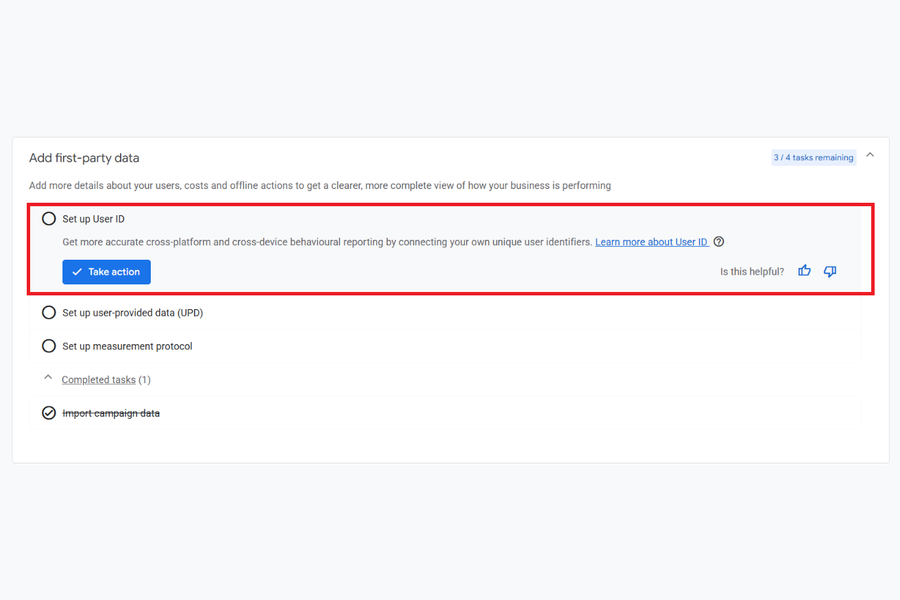
The recommendation concerned setting up user-provided data.
This is about connecting customer-provided information to improve conversion measurement. I believe that connecting customer-provided information can really improve conversion measurement. When businesses have first-party customer data they can use customer data to support accurate conversion measurement and to better understand campaign performance.
For businesses running Google Ads campaigns this is especially valuable because conversion measurement plays a role in understanding advertising results.
For example, when a customer fills out an enquiry form on your website, their email address is collected. GA4 can use this customer information in a secure, hashed format to improve conversion tracking and help you better understand your Google Ads results
2. Import Campaign Data in GA4
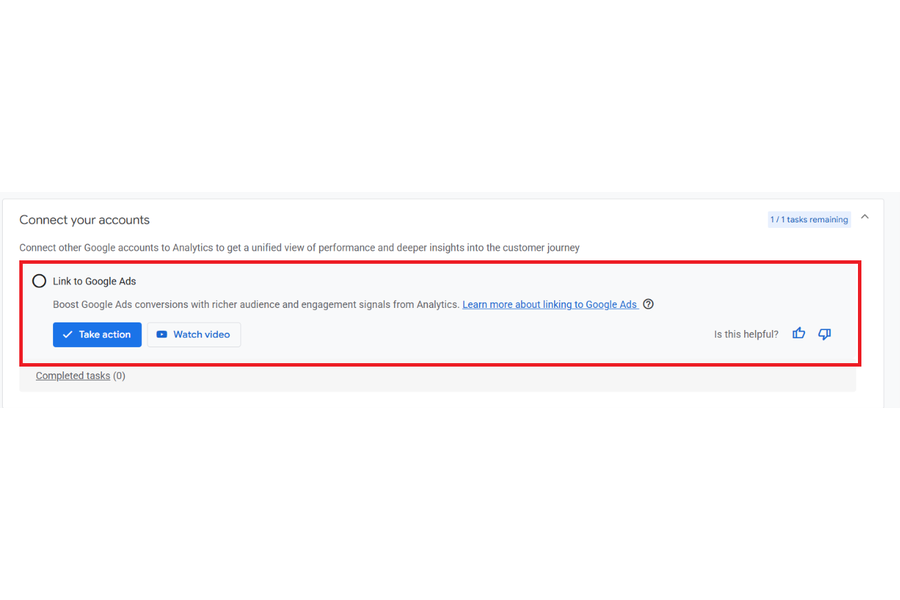
The second recommendation caught my eye because many businesses do not advertise on one platform.
Google Analytics suggested importing campaign data from platforms such, as Meta, TikTok and other external advertising sources.
Consider a business running campaigns on Google Ads, Meta Ads and TikTok Ads.
Usually, marketers visit advertising dashboards to understand how each campaign performs. Bringing campaign data into Google Analytics can create a more consolidated view of advertising performance.
It becomes easier to compare channels. See where advertising investments are going.
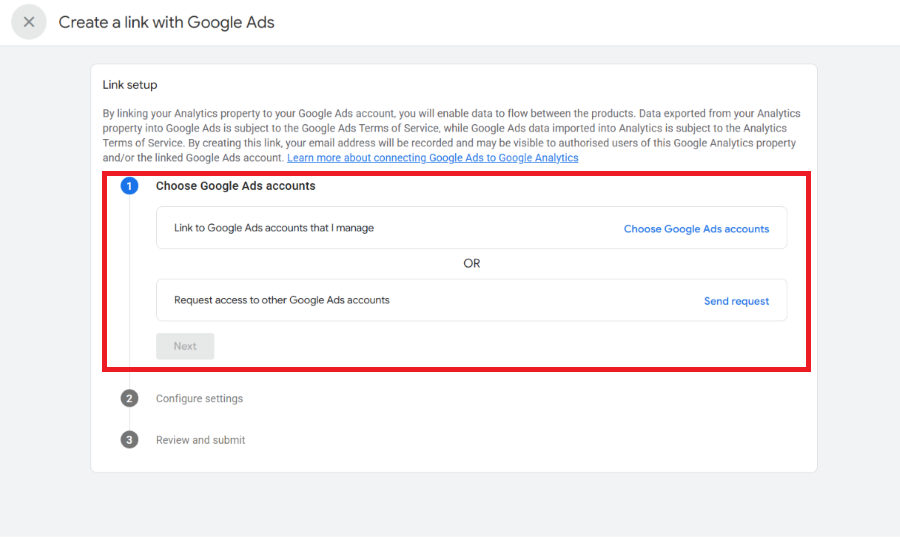
• Open Google Analytics. Go to the Tasks section. Click on Import campaign data. Then click Take action.
• Pick the advertising platform you use. For example, choose Google Ads or Meta Ads.
• Select your Ad account. Set up the configuration settings.
• Click Next. Look over the details. Make sure everything is correct. Then submit.
• Go back, to Google Analytics. Check your reports. You should see the imported campaign data now.
3. Target Ads with Analytics Audiences in GA4
The recommendation concerned using Analytics audiences for advertising.
GA4 allows marketers to create audience segments based on user behaviour and share eligible audiences with Google Ads.
For example, imagine someone visits your website checks your services page but leaves without submitting an enquiry.
You can create an audience based on that behaviour. Use it for remarketing through Google Ads, subject to required account and audience eligibility settings.
This gives advertisers another way to reach people who have already shown interest in their business.
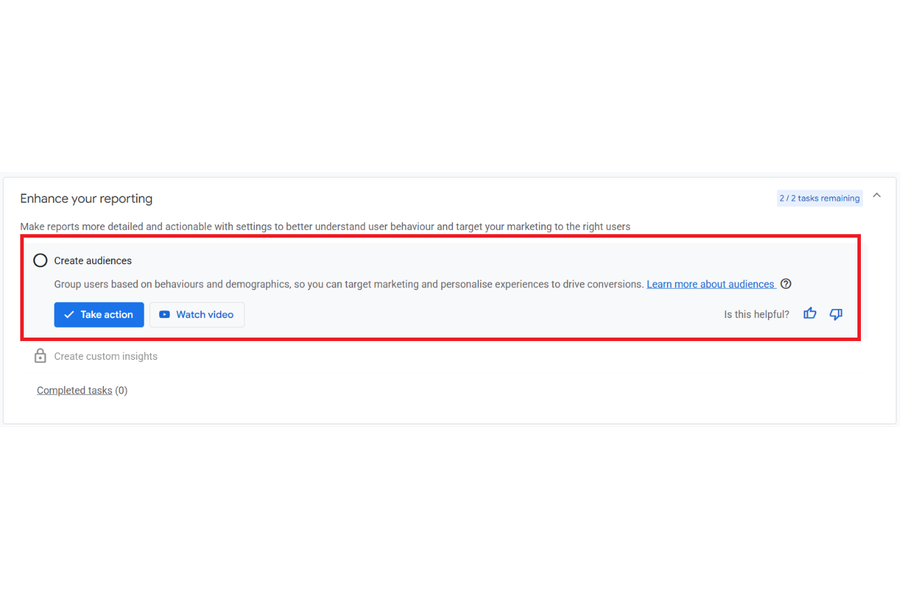
• Open Google Analytics. Go to the Tasks section.
• Select Enhance. Click Take action.
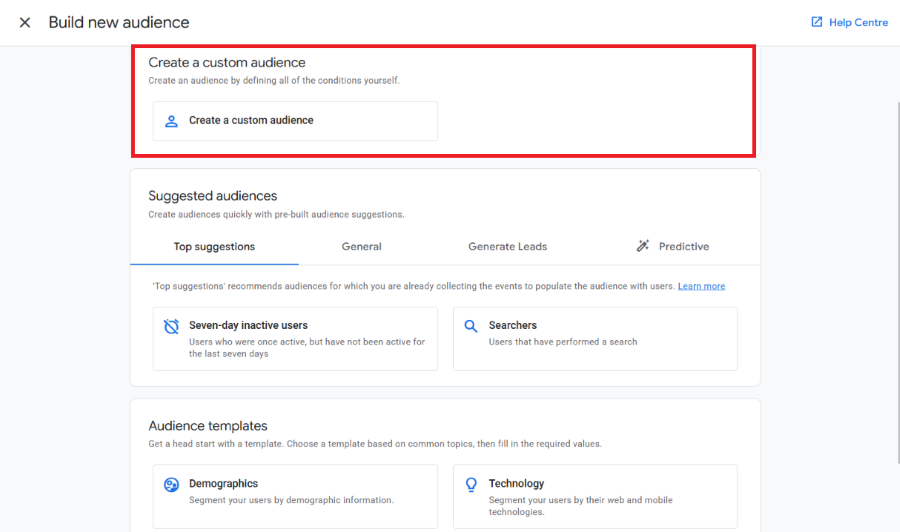
• Click Create an audience.
• Select Create a custom audience.
• Enter an audience name.
• Click Add condition and select the users you want to target.
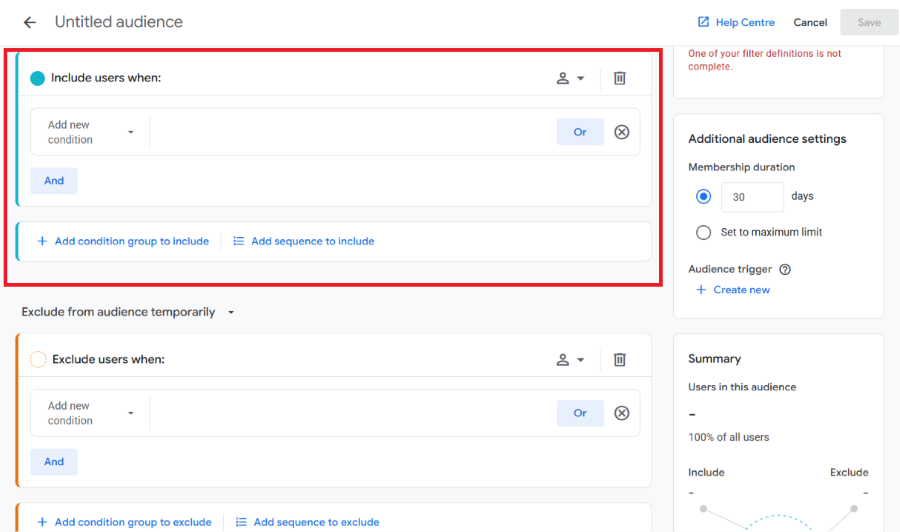
•. Exclude conditions if needed.
• Set the audience membership duration to 30 days.
• Review the settings. Click Save.
• The audience is now created in Google Analytics.
Why this GA4 Remainder Matters for Digital Marketing Agencies
After reading all three recommendations I understood the purpose, behind the notification.
Google Analytics was not simply asking users to explore a feature. Google Analytics was encouraging users to review Google Analytics setup and finish tasks that could help them use their Analytics data better.
We configure GA4 connect our website and start tracking events and conversions. We may leave some useful configurations incomplete.
That is where Task Assistant can be helpful. Task Assistant gives users a structured way to identify what they can do next.
For me the interesting part of this email was not the introduction of Task Assistant. It was the way Google Analytics is guiding users toward data measurement.
As someone who regularly works with GA4 Google Ads and campaign tracking I know how important accurate measurement is. We can run campaigns generate traffic and receive enquiries. Without proper tracking understanding actual results becomes difficult.
I would especially recommend reviewing the campaign data import and audience recommendations if you manage advertising across platforms.
So what first looked like another Google Analytics update notification turned out to be a reminder to review Google Analytics setup.
Need help with GA4 setup or Google Ads tracking? Chat on WhatsApp +91 94423 64284